Integration Wizard Preferences
Use this dialog box to select options when importing data into Cobra through the Integration Wizard. These options correspond to those found on the Change Control and Filter pages of the Integration Wizard.
The options configured and secured in this dialog box determine the default settings for integration configurations.
Contents
| Field | Description |
|---|---|
| Prevent changes to historical time phased values | Use this option to prevent changes to time-phased values on or before the project’s status date. When selected, the Baseline Start and/or Baseline Finish dates that fall on or before the status date (current period) also become read-only.
Note: Selecting this option does not restrict editing of historical time-phased values within the Project view panes. For that, refer to the
Prevent editing of historical time-phased values option on the Project Preferences tab of the Project Properties dialog box.
|
| Apply historical budget changes as an adjusting entry in the current status period | Use this option if you are importing budget data. This option directs Cobra to maintain historical data and to summarize changes being loaded into historical periods as a single record in the status period. |
| Apply historical forecast changes as an adjusting entry in the current status period | Use this option if you are importing forecast data. This option directs Cobra to maintain historical data and to summarize changes being loaded into historical periods as a single record in the status period.
If the work package is due to start in the current period, the spread is the same as the budget and the Calculate Forecast process just moves the spread if it slips. If the work package has started, the budget is dropped during the Calculate Forecast process if the forecast uses the retain EAC method. Cobra takes the value into account for the retain EAC forecasts and runs the respread process normally. Cobra assumes that before you select this option, you have already advanced the calendar but have not yet calculated the forecasts. If forecasts have been calculated after advancing the calendar before applying the historical forecast changes, you need to recalculate forecasts after selecting this option. |
| Allow loading forecast in the current status period | Use this option to load forecasts in current status period during integration.
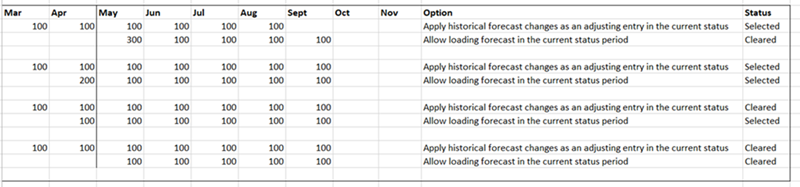
For Cobra to adjust the entries in the current period rather than in the period after the status period, you must select this option and the
Apply historical forecast changes as an adjusting entry in the current status period option. Otherwise, Cobra ignores the entries prior to the status date.
Attention: For more information, see the
example below.
Note: For new projects, this option is cleared by default.
|
| Force existing Work Package dates to match the schedule for | Use this option to update the work package baseline dates to match the dates of the mapped activities to the date set selected for Baseline Dates on the Schedule Mapping page of the Integration Wizard. |
| Update Control Account dates to span Work Package dates exactly | Use this option to update the control account start and finish dates for all date sets to exactly match the earliest start and latest finish dates of all work package date sets.
|
| Update the description for existing Control Accounts and Work Packages | Use this option to update the description of existing control accounts to match the description of the activity in the corresponding activity file. If the description in Cobra is blank, Cobra still updates it whether you select this checkbox or not. |
| Recalculate existing milestone/step weights | Use this option to recalculate the weight of each milestone or step. This option applies only if Cobra calculates milestone or step weights during the import process and not imported from a file field.
Attention: For more information on how milestone or step weights are calculated, see
Milestones/Steps.
|
| Delete items from Cobra that are no longer in the schedule | This option directs Cobra to delete data during the integration. This option has the following sub-options:
Cobra determines what data to delete using its sub-options. |
Delete Control Accounts and Work Packages no longer in the schedule: Use this option to delete any Cobra work package that is no longer in the file you are importing.
| |
| Delete milestones/steps no longer in the schedule: Use this option to delete existing milestones or steps no longer found in the schedule. | |
| Delete resource assignments no longer in the schedule: Use this option to delete all resources no longer found in the incoming resource assignment file. | |
| Delete only resources with the default or selected class: Use this option to filter the deleted resources to include only those that have the default class or the filtered class defined on the Resource Assignments page of the Integration Wizard. | |
| List deleted items in the process log: Select this option to list all items that are deleted from Cobra during the import process in the integration log.
This option controls whether the deleted items should be listed or not in the log file:
| |
| Delete only items that satisfy the selection criteria | Use this option to delete only the items from Cobra that meet the criteria selected. This option displays only when loading into an existing project. |
| Load only schedule activities that do not exist in Cobra | Use this option to import only new data and ignore any existing data so that previously imported data remains the same. |
| Load only data for Control Accounts that already exist in Cobra | Use this option to import only previously imported data and ignore any new schedule information. |
| Create Work Package that do not exist when loading forecast | Use this option to create a new work package if it does not exist and you are loading forecast data. If this option is not selected, Cobra ignores the forecast values if the work package does not exist. |
| List added Control Accounts and Work Packages in the process log | Select this option to list all control accounts and work packages added during the schedule integration in the process log. |
Example
The following example shows how entries are adjusted with different combinations of the Apply historical forecast changes as an adjusting entry in the current status and the Allow loading forecast in the current status period options.